
 By
By If you're unsure what kind of Raspberry Pi (link to AMZN) you are using, there are a couple of ways to find out what Raspberry Pi model it is.
Physical board
On the Raspberry Pi board itself, the model and version is printed on the physical board.
On the picture below, we can see the Rasbperry Pi 3 Model B+, manufactured in 2017.

On the command line
If you're connected remotely to the Raspberry Pi (or you're not in the mood to open the case), you can SSH into the Raspberry Pi and use the command line. We are assuming you run the standard Operating System for Raspberry Pi, which is the Raspberry Pi OS, in the past named Raspbian.
Raspberry Pi Default SSH credentials
If this wasn't changed at the setup (creating the SD card) of the Raspberry Pi, the default SSH credentials are:
User: pi
Password: raspberry
The system's CPU information (located under /proc/cpuinfo) contains the name of the Raspberry Pi model and revision version:
pi@raspberrypi:~ $ cat /proc/cpuinfo | grep Model
Model		: Raspberry Pi 5 Model B Rev 1.0
The CPU information method above is without doubt one of the fastest ways how to show the Raspberry Pi model and revision, but there are other commands showing even more information.
If you want to go really deep, you can use the raspinfo command. This doesn't just show information about the Raspberry Pi model and installed Operating System, but other hardware internals and system configurations as well. The collection of all the data takes some time though.
pi@raspberrypi:~ $ raspinfo
System Information
------------------

Raspberry Pi 5 Model B Rev 1.0
PRETTY_NAME="Debian GNU/Linux 12 (bookworm)"
NAME="Debian GNU/Linux"
VERSION_ID="12"
VERSION="12 (bookworm)"

Raspberry Pi reference 2024-11-19
Generated using pi-gen, https://github.com/RPi-Distro/pi-gen, 891df1e21ed2b6099a2e6a13e26c91dea44b34d4, stage4

Linux raspberrypi 6.12.47+rpt-rpi-2712 #1 SMP PREEMPT Debian 1:6.12.47-1+rpt1~bookworm (2025-09-16) aarch64 GNU/Linux
Revision	: c04170
Serial		: c291570413befc39
Model		: Raspberry Pi 5 Model B Rev 1.0
Throttled flag  : throttled=0x0
Camera          : vc_gencmd_read_response returned -1 error=1 error_msg="Command not registered"
[...]
And what about the memory?
Indeed, some of the Raspberry Pi models are offered in multiple variants, with more or less memory (RAM).
The easiest way to find this out is using the following commands when you're connected by SSH or on the GUI in a Terminal window.
The following commands are some examples how to find the available system memory / RAM on your Raspberry Pi.
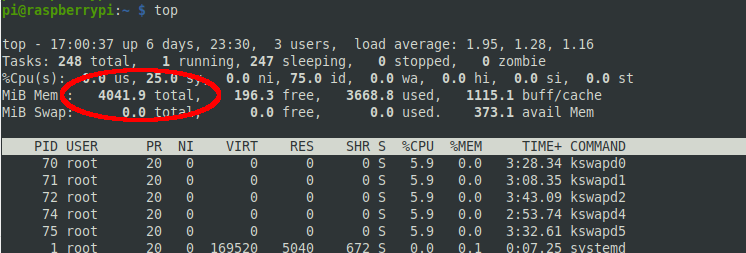
top
The top command (and similar commands, such as htop) quickly show the available system memory at the top of the output.
free
As an alternative you can also use free, which shows the total memory in KiloBytes:
pi@raspberrypi:~ $ free
               total        used        free      shared  buff/cache   available
Mem:         4138896     3673600      223360      919792     1098352      465296
Swap:              0           0           0
Doing the math of the total value (4138896) divided by 1024 results in 4041.890625 – the same amount seen in the top output (rounded).
Or you use free -h to have a "better view" as a human:
pi@raspberrypi:~ $ free -h
               total        used        free      shared  buff/cache   available
Mem:           3.9Gi       3.5Gi       264Mi       902Mi       1.0Gi       442Mi
Swap:             0B          0B          0B


