
 By
By SolarEdge inverters run on internal software – on embedded devices this is often called the Firmware. SolarEdge inverters are, besides their obvious electricity production function, embedded (computer) devices, too.
New firmware updates are frequently released by SolarEdge. Information about new SolarEdge Firmware Updates and releases can be found on the SolarEdge website.

Firmware updates can improve performance, fix bugs and, unfortunately, sometimes might also introduce so-called regressions. Regressions are problems (bugs) on functions that start after the Firmware Update, but have worked before.
It's therefore important to keep an eye on the firmware updates. Was a major bug fixed in the latest release? Does the new version allow a better performance of my inverter?
Finding the installed Firmware version on Internet
Most SolarEdge owners are likely using the SolarEdge app to have a view on the current production. While it is a pretty nice-looking app, it does not show details such as the installed firmware version.
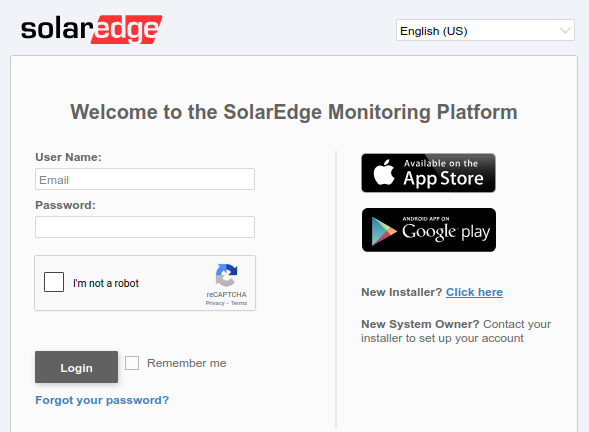
What most SolarEdge owners don't know is that there is also a web/browser version of the app. The SolarEdge Monitoring Platform uses the same login as you use on your SolarEdge app.
Once logged in, have a look at the Equipment section on the right bottom side of the web page.
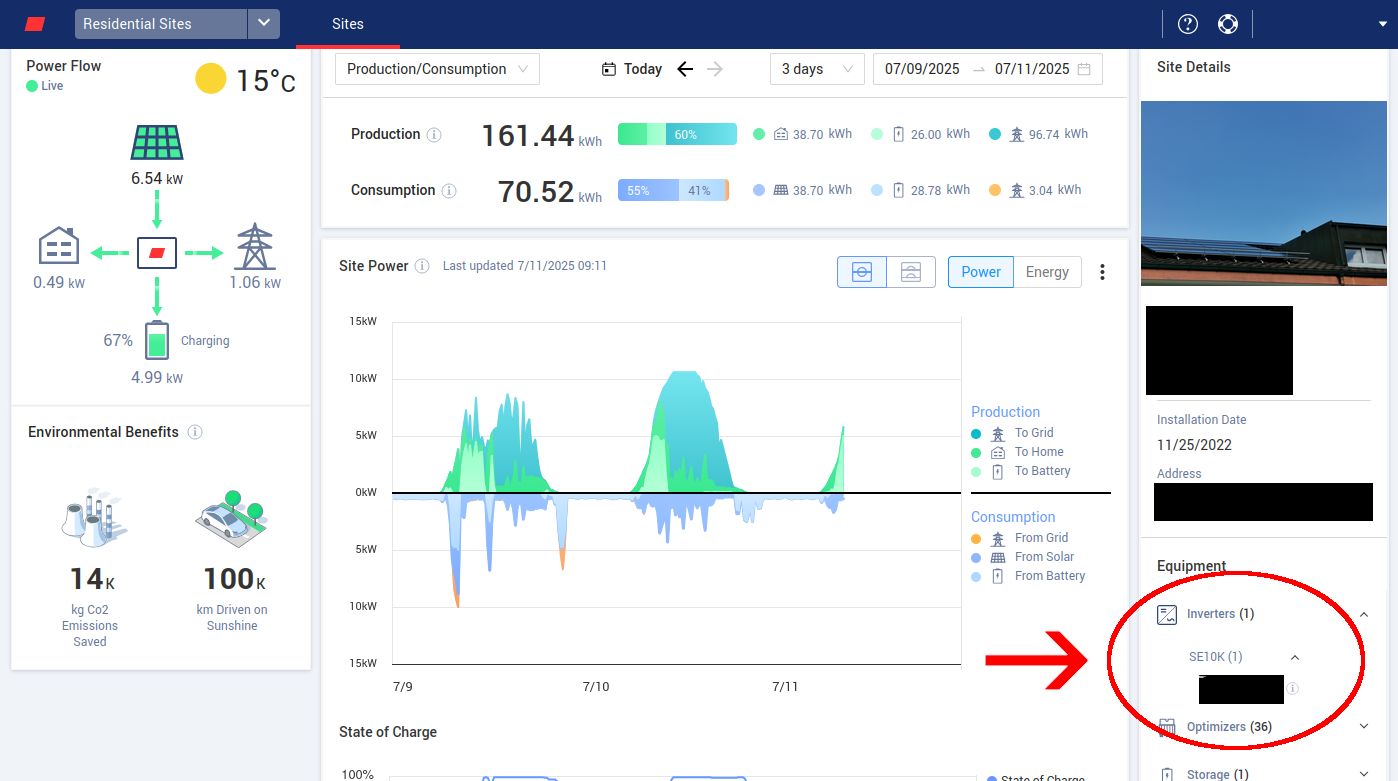
Expand the inverters section and locate your inverter. Click on or hover with your mouse on the (i) icon.
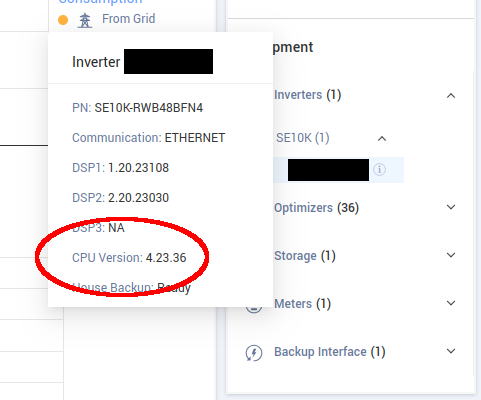
Additional information is shown on top. It contains details about the product number and installed software versions. The shown CPU Version indicates the installed Firmware.
Finding the installed firmware version using SetApp app
If you are on-site and you are a registered inverter installer, you are most likely using the so-called SetApp application from SolarEdge.
After connecting SetApp to the inverter (using the QR Code on the inverter's case side), you can navigate to Information and the app shows the various installed versions of the equipment.

Once again, the CPU Version indicates the installed Firmware version.


