By
By Antigravity is Google's response to Claude Code and allows integration into multiple editors (such as visual IDEs) but also integrates nicely into your local Linux terminal.

Download & Install Antigravity
The download and setup process is the same, as the installation script is downloaded and executed with the following command:
ck@mint:~$ curl -fsSL https://antigravity.google/cli/install.sh | bashYou don't need to run this command with privileged (sudo) permissions, as everything will be installed into your home directory inside ~/.local.
Always be cautious with AI
As a best practice, it's better to be safe than sorry with AI. We recommend to use a dedicated/separate local user when you integrate an AI – doesn't matter which one – into your CLI.
The output of the script shows which version (here 1.1.16) is installed and that the path ~/.local/bin is added into the $PATH variable.
⠋ Detecting system environment...
✓ Platform detected: linux_amd64
⠋ Querying release repository...
✓ Latest available version: 1.1.16
⠋ Downloading release package...
✓ Download complete and checksum verified.
⠋ Extracting binary from archive...
⠋ Configuring shell environment...
ERROR: logging before google.Init: I0820 11:54:31.240575       1 installer.go:27] Running Antigravity CLI setup...
ERROR: logging before google.Init: I0820 11:54:31.240676       1 installer.go:147] Appending PATH export to profile /home/ck/.bashrc: export PATH="/home/ck/.local/bin:$PATH"
ERROR: logging before google.Init: I0820 11:54:31.245791       1 installer.go:184] Successfully updated shell profile: /home/ck/.bashrc
ERROR: logging before google.Init: I0820 11:54:31.245906       1 installer.go:147] Appending PATH export to profile /home/ck/.profile: export PATH="/home/ck/.local/bin:$PATH"
ERROR: logging before google.Init: I0820 11:54:31.248270       1 installer.go:184] Successfully updated shell profile: /home/ck/.profile

Warning: /home/ck/.local/bin is not present in your active PATH.
To use the 'agy' CLI globally, please manually add it to your shell profile:

  echo 'export PATH="/home/ck/.local/bin:$PATH"' >> ~/.bashrc && source ~/.bashrc


✅ Antigravity CLI binary placed successfully at /home/ck/.local/bin/agy
Note: The binary is installed, but it is not in your active PATH. Please follow the instructions above to add it, then restart your terminal session.
The ERROR log entries can be ignored. These are not actual errors of the installation.
Once you see the green check icon ✅ you should open a new terminal or close the current one and create a new session.
Fix PATH
Make sure the $PATH variable contains /home/<yourusername>/.local/bin:
ck@mint:~$ echo $PATH
/home/ck/.local/bin:/home/ck/.local/bin:/home/ck/.local/bin:/usr/local/sbin:/usr/local/bin:/usr/sbin:/usr/bin:/sbin:/bin:/usr/games:/usr/local/games:/snap/bin
In this case the Antigravity setup took it a bit too far and added the path multiple times:
.bashrc:export PATH="/home/ck/.local/bin:$PATH"
.profile:export PATH="/home/ck/.local/bin:$PATH"
Because .profile also includes/sources .bashrc, the path is added multiple times into the PATH. Feel free to remove it from .bashrc (or keep it there and remove from .profile).
ck@mint:~$ tail -n 2 .bashrc
# Added by Antigravity CLI installer
export PATH="/home/ck/.local/bin:$PATH"
Using Antigravity
Now that everything is installed, you should now be able to launch the agy command. It's best to first cd into a local Git repository where you want to work on code.
When you launch agy the first time, you will have to authenticated yourself with your Google account. The easiest method is to authenticate via browser. In this situation you get a link that you open in a browser where you are already authenticated with your Google account. From that opened URL you get a token and this token you paste back into the Terminal.
Once authenticated you can see your connected Google account in the Antigravity CLI output.

If this is the first time Antigravity runs in that directory/path with your code, it asks you explicitly whether or not you trust this directory. In order to use Antigravity, you must approve with yes.

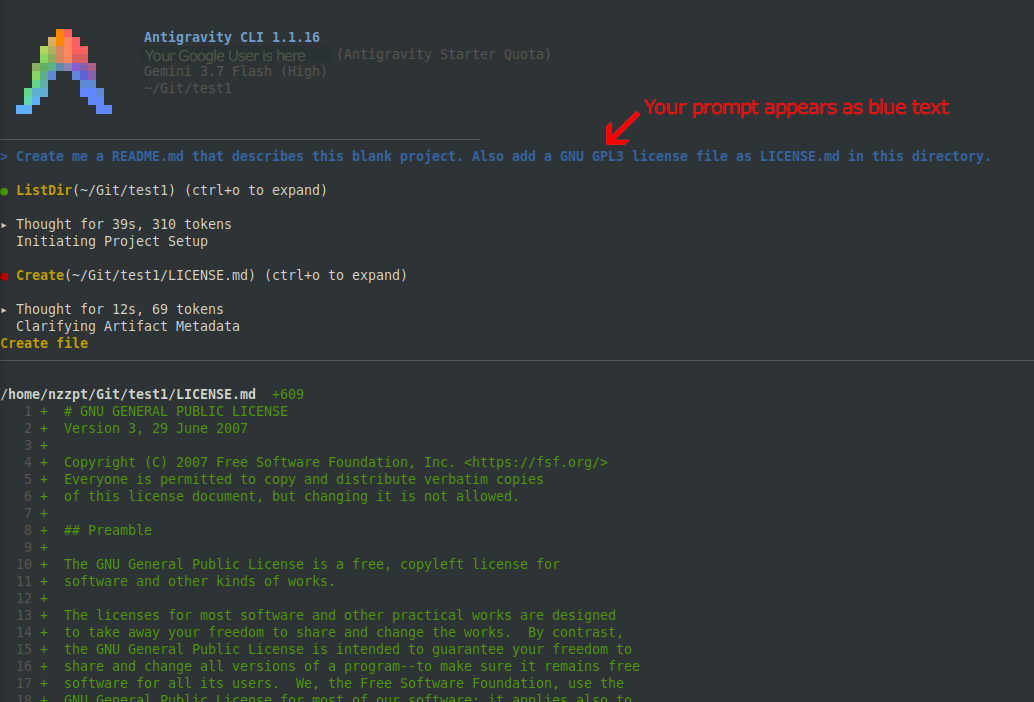
And now you can use Antigravity the same way you'd use Claude Code (or another AI integration in your Terminal) and prompt for code changes.